
When I was a full-time writer, I used to review these operating systems every year with an emphasis on accessibility. This year is different. OS reviews are getting more difficult to write because the operating systems are quite mature. There are fewer and fewer changes year over year. And while Apple still is the accessibility leader, it doesn’t get the focus every year.
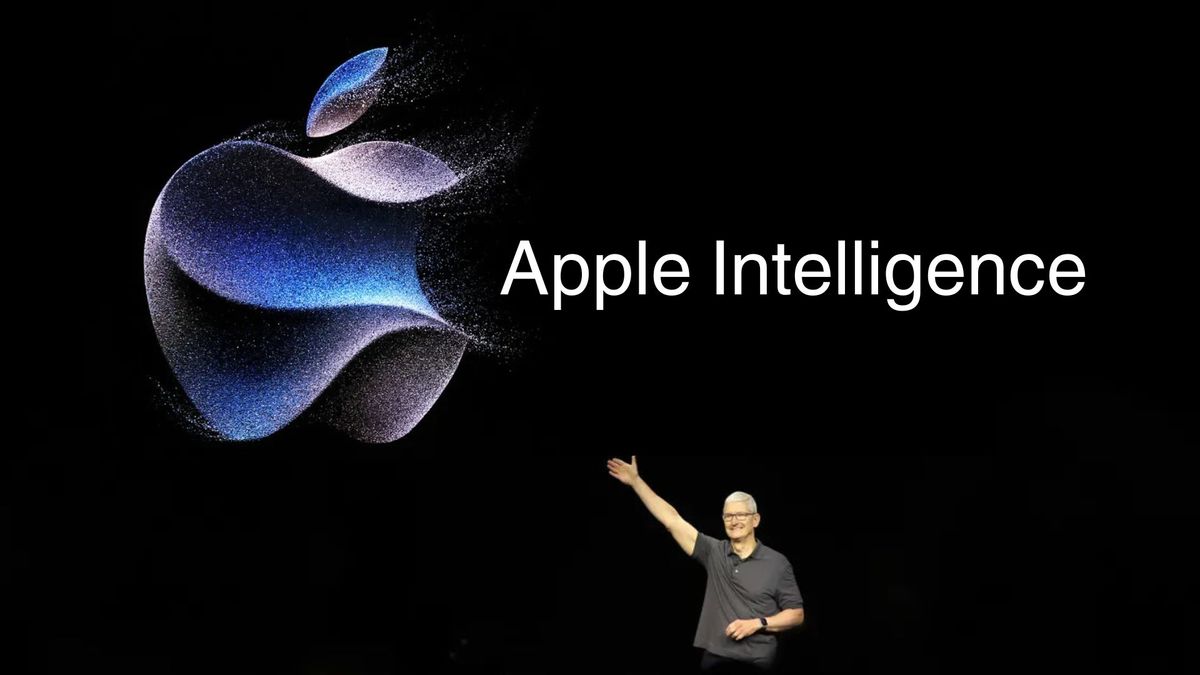
Further compounding the challenge is that Apple is doing two betas concurrently. iOS 18 is out as of today. iOS 18.1 will not be out until sometime next month. The 18.1 beta is the one that contains a subset of features branded as Apple Intelligence. It is almost impossible to have that beta on device while trying to review iOS 18. You pretty much need three Macs, iPhones, and Apple Watches to do a proper review.
A further complication is that when the Apple Intelligence features are released next month, they will still be in beta. Worse still, 18.1 contains only a fraction of the features Apple Intelligence will ultimately have. We need to consider this a rolling upgrade cycle for all devices with most of the interesting bits being held over for late this year and the first part of next year. In Apple land, the upgrade cycle has never been messier or more confusing.
For these reasons, I have decided to forgo a 20,000 word review and present an overview of what you can expect when you upgrade today. This might come in more than one installment as there are differences in iPhone 18 and iPadOS 18. We might even do a third piece on macOS 15 Sequoia. For now, we will focus on iPhone
Home Screen Lock Screen
One of the biggest boons to accessibility this year is not an accessibility feature. It is the ability to fully customize your Home Screen and Lock Screen. Customization means control. And control is access. This is the theme of iOS 18.
Starting with the Lock Screen, you can do more than ever. Just note that this writeup is not a tutorial for how to use the features, just an overview of what they are. Last year’s customizations allowed users to place shortcuts to various functions right below the digital clock. We were given three slots to use in a variety of ways. Those tiny widgets served as shortcuts to things like the weather app, calendar, and more. You can even install your own shortcuts that you made with the Shortcuts app. That provided a ton of flexibility.
This year, you are able to take things even further. Those buttons at the bottom of the screen that activate the flashlight and the camera no longer have to be tied to those functions. You can now change those buttons to be anything you like. What used to be the flashlight button is now the record button for Voice Memos on my iPhone. The camera button is now the podcast app button.
You now have 5 customizable widgets on your Lock Screen. That means 5 tasks that used to be a pain to launch can now be easily launched from your Lock Screen. Because you know where you put those functions, you no longer have to fumble around to find them. If you have a phone with an Action button, you will have 6 customizable options that can be launched without unlocking your phone.
The Home Screen gets customizable icons, including the ability to enlarge them at the expense of losing the print labels underneath. However, if those labels are too small for you to read anyway, it might be worth it to go with slightly larger icons.
You can also rearrange the icons in a more freeform way. You might have as many as 24 icons on a screen arranged in a grid. But you are not stuck with that symmetrical arrangement. You can reduce the clutter and choose to have only eight or ten icons on a screen. Instead of a grid, you might choose to have four icons down the left side and four down the right, leaving the middle blank, or a space for a large widget. There are still a few rails. But you have a great deal of freedom to put as few icons and widgets on a page as you like, and in any arrangement you prefer. That makes it easier to find the apps you need quickly.
Finally, you can make your icons and widgets dark mode independently of the system settings. You can even give your screens a particular color. This could potentially help people who have an easier time seeing some colors better than others. There is more to be said about the Lock Screen and Home Screen. But customization is the feature with the greatest accessibility impact.
Call recording (with Apple Intelligence coming in October to compatible devices)
There are a lot of audio bits tucked into the operating system. One that is worth highlighting is call recording. Legality is not an issue because both sides can hear an announcement that the call is being recorded. Both sides also get an announcement when the recording has stopped.
If you are having an important conversation that includes a lot of details you will need to refer to later, it is not always easy to find a pad and pen to take copious notes. With this new call recording feature, you can tap an on-screen button and begin recording the call from there. To repeat, this is a builtin feature of the phone app and everyone gets it. The recorded calls are saved in Notes and can be replayed anytime. That is where the real accessibility begins.
You have the option to play the audio right there in the Notes app. You can rewind and fast forward just as you would a podcast. Moreover, you can tap a button and go into transcription mode. Here lies the real magic. Instead of being confronted with an audio player, you are now faced with a scrolling transcript of the conversation presented in the same as song lyrics in the Music app. Additionally, you can scroll through the conversation and jump to the part you need to hear by tapping on the word. These audio notes are also searchable by text input.
That’s not all: Your transcript has speaker labels so you know who is speaking just from reading the transcript. As mentioned, you can do a search for specific call recordings just by typing a few words from that recording. This feature is systemwide. That means that you can use the builtin spotlight feature to search for something said in a call recording the same way you would search for anything else. As if that wasn’t enough, this feature works across all your devices. The call you recorded on your phone can be searched and replayed on your Mac or iPad.
Let’s say, hypothetically, that you are having a total knee replacement Wednesday morning, September 18 (weirdly specific) and you get a call from your doctor a day or two later. This feature could be very helpful because you will likely be impaired from strong meds and a recording of the call could be played later by your wife or caretaker to hear exactly what the doctor said. That’s a wild example but you get the idea.
More audio
Notes gets a major overhaul in this year’s upgrade cycle via Apple Intelligence coming in October to compatible devices. To get these features right now on compatible devices, you can upgrade to the latest iOS 18.1 developer beta or public beta. It can be done in the settings app and does not require a developer account. In my opinion, the beta is quite stable and could have been released with iOS 18. That said, there can be unexpected problems caused by betas. Over the last couple of months, I have encountered very few. Your milage may vary.
For those who would rather wait for the final release in October, this is some of what’s in store for you besides call recording. You will be able to make audio recordings directly in the Notes app. There is no need to go to some other app to make simple recordings. Just open a note and tap the button. You can add audio to existing notes as well.
As with call recordings, those notes receive automatic transcription and spotlight search. With so many audio-handling features, one wonders why the Voice Memos app still exists. Apple had to grapple with that question as well and came up with the following answer:
Know that this feature I am about to describe requires iPhone 16 Pro. As of now, the documentation suggests that it will not be available on any other phones, including the ones that can run Apple Intelligence. This one is tied to specific hardware. That said, my recommendation for accessibility users is iPhone 16 Pro or Pro Max.
With that combination of hardware and software, Voice Memos will be transformed into a pseudo multitrack recorder. The functionality will be very basic, but will have exciting, longterm implications. You will be able to record yourself playing an instrument such as a guitar or piano. You can then replay that recording and sing with it playing over the speakers without the encumbrance of headphones.
To understand the magic, you have to understand a basic thing about audio production that is quite intuitive when you stop and think about it. Anything you play that the microphone can pick up will be picked up and become a part of what you are recording. If you only have one track to work with, you can’t play that track and record it at the same time on the same device.
Apple is solving that problem by blending a second track within the first one. That second track will only record your voice and not the background. I suspect it is doing it with realtime voice isolation using AI. Stem splitting is similar but more powerful. It can separate one instrument from another. Voice isolation is just fancy (very fancy) noice cancelling. If I am right about how they are doing this, you won’t be able to play multiple instruments because it wouldn’t be able to distinguish one instrument from another. Still, it’s a technological feat if it really works as advertised.
In the future, we might be able to participate in Zoom calls without headphones in a way that does not ruin the experience for everyone else. They will not hear their voice being echoed by your speakers. And background noise in the environment of each participant will be a thing of the past, all with no headphones. What Apple is doing with Voice Memos is the first step of that possible future. And the future is very exciting indeed.
Conclusion: Lots of little things
There’s more to say. But this will have to do for now. I will be releasing other overviews of the other OS upgrades. The takeaway is that iOS 18 has a lot of little features that will amount to quality-of-life improvements by way of accessibility affordances. There is a lot of crossover between iOS, iPadOS, macOS, watchOS, and tvOS. Features that I didn’t mention here might show up a writeup for one of those.
More to come…
David Johnson